



How to Install an SSL Certificate on cPanel?
Installing SSL on cPanel is straightforward: paste your certificate code (CRT) into the right field, let Autofill by Certificate fill in the KEY and CA Bundle automatically, then click Install. If you've already generated a CSR and completed domain validation, this guide takes you through the rest - with screenshots at every step.
This guide covers cPanel's "Manage SSL Sites" screen, which is where all paid SSL certificates are installed.
View SSL Certificates
Don't have an SSL certificate yet? Browse Atak Domain's SSL options.
cPanel SSL Installation: Quick Steps
| 1 | Log in to cPanel - My Account > My Hosting Plans > Web Hosting > Manage. |
| 2 | Open SSL/TLS - Search for "SSL/TLS" on the cPanel dashboard. |
| 3 | Click Manage SSL Sites - The blue button under "INSTALL AND MANAGE SSL FOR YOUR SITE (HTTPS)." |
| 4 | Select domain & paste CRT - Choose your domain and paste the full certificate code. |
| 5 | Click Autofill by Certificate - KEY and CABUNDLE fields will fill automatically. |
| 6 | Click Install Certificate - Complete the installation. |
| 7 | Enable HTTPS redirect - Set up a 301 redirect via cPanel Redirects or .htaccess. |
| 8 | Verify - Confirm the padlock appears and run the SSL Checker. |
Before You Start
Make sure you have the following ready before starting:
| SSL certificate | Purchased from Atak Domain and fully validated |
| CRT code | Your certificate code from the email - copy everything including the dashes |
| KEY file | The private key generated when you created your CSR - Autofill usually finds it automatically |
| CA Bundle | Intermediate certificate chain - Autofill fills it in; missing it causes browser warnings |
| cPanel access | Admin-level access to the cPanel for your hosting account |
| Domain name | The exact domain the SSL certificate covers |
How to Install SSL on cPanel: Step by Step
Step 1 - Log In to cPanel
If your hosting is with Atak Domain, go to My Account > My Hosting Plans > Web Hosting. Click the "Manage" button next to your hosting plan.
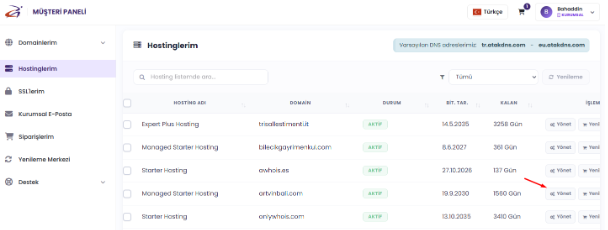
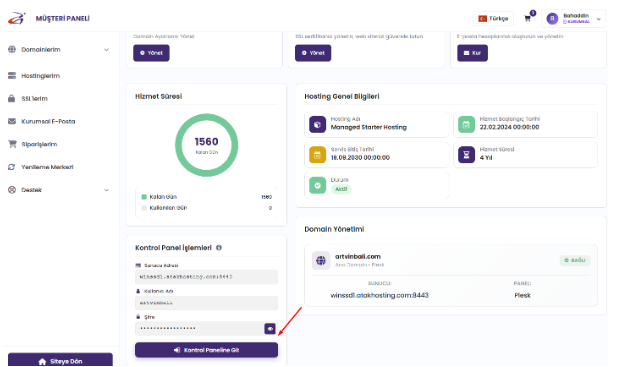
On the page that opens, click the green "Go to Control Panel" button to launch cPanel.
Step 2 - Open SSL/TLS
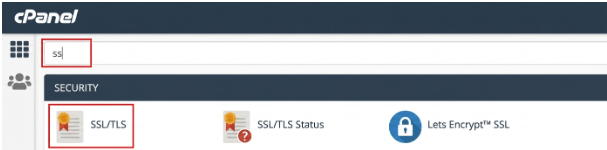
On the cPanel dashboard, click "SSL/TLS." There are many tools on the cPanel home screen - the quickest way is to type SSL/TLS in the search box at the top.
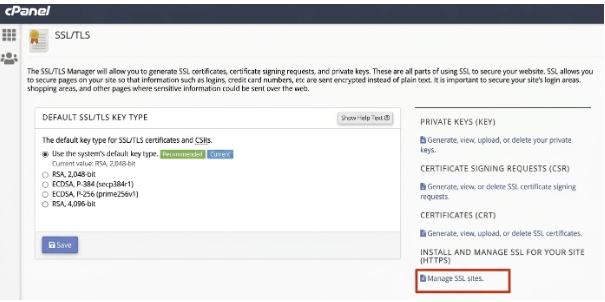
Step 3 - Open Manage SSL Sites
Under the "INSTALL AND MANAGE SSL FOR YOUR SITE (HTTPS)" heading, click the blue "Manage SSL sites" button.
Step 4 - Select Domain and Paste the CRT Code
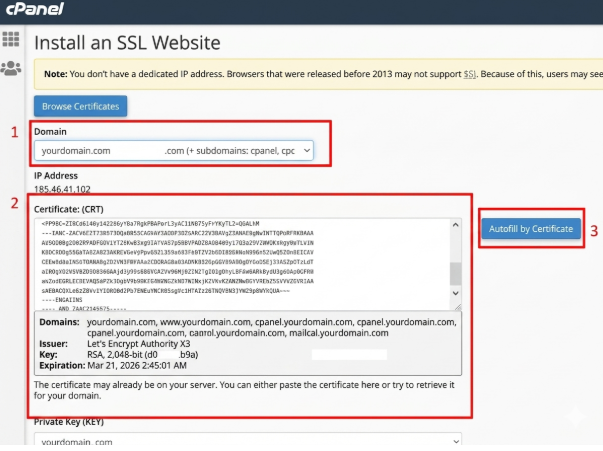
On the Manage SSL Sites page, select the domain you want to secure from the "Domain" dropdown.
Open your certificate file and copy the complete CRT code - including the -----BEGIN CERTIFICATE----- and -----END CERTIFICATE----- lines.
Paste the code into the "Certificate: (CRT)" field.
Step 5 - Click Autofill by Certificate
Click "Autofill by Certificate." This step is critical - here's what to look for:
KEY field fills automatically - the CRT is correct and matches the private key on this server.
CA Bundle fills automatically - the intermediate certificate chain has been added.
KEY field stays empty - the CRT and KEY don't match. Think of it like trying to open a lock with the wrong key. Double-check that you copied the right certificate; this usually means the wrong CRT was pasted.
⚠️ If the KEY field stays empty, do not proceed. Go back and verify that you copied the correct certificate file.
Step 6 - Click Install Certificate
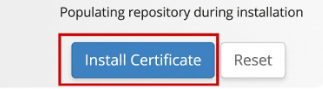
Once the KEY and CA Bundle fields are filled, click "Install Certificate" to complete the installation.
✅ Your SSL certificate is now installed on cPanel. The next step is enabling the HTTPS redirect.
Step 7 - Enable the HTTPS Redirect
SSL being installed doesn't automatically redirect HTTP visitors to HTTPS. You need to configure that separately - otherwise visitors who type http:// will land on the unsecured version.
cPanel offers two ways to do this:
Method A - cPanel Redirects
Go to "Redirects" from the cPanel dashboard.
Type: Permanent (301)
https:// www. - select your domain
Redirects to: https://www.yourdomain.com
Click "Add."
Method B - .htaccess
Open cPanel > File Manager > public_html > .htaccess and add:
RewriteEngine On
RewriteCond %{HTTPS} off
RewriteRule ^(.*)$ https://%{HTTP_HOST}%{REQUEST_URI} [L,R=301]
ℹ️ Always use a 301 (permanent) redirect, not 302 (temporary). Only a 301 passes full SEO authority to the HTTPS version.
Step 8 - Verify Your Installation
Open your site in a browser and confirm the padlock icon appears. For a full check, use the Atak Domain SSL Checker:
Post-installation checklist:
Site loads over HTTPS
Padlock visible in browser address bar
HTTP automatically redirects to HTTPS
No mixed content warnings (F12 > Console)
Certificate expiry date noted
Common cPanel SSL Installation Mistakes
These are the issues most likely to block installation or cause the certificate to fail:
❌ Wrong CRT pasted
A CRT from a different domain won't match the KEY; Autofill can't fill the KEY field.
❌ KEY mismatch
CRT and KEY may not be from the same CSR. Verify the certificate file.
❌ CA Bundle missing
If Autofill didn't fill it, add it manually; missing chain causes browser warnings.
❌ No HTTPS redirect configured
Visitors stay on HTTP even after the certificate is installed.
❌ Wrong domain selected
If a different domain is selected from the list, the certificate installs on that domain instead.
Frequently Asked Questions
Q: How long does cPanel SSL installation take?
A: Once domain validation is complete, the installation itself takes just a few minutes.
Q: What is a CRT?
A: A CRT (Certificate) is the encrypted text block issued by the certificate authority that identifies your domain. It's the main file you paste into cPanel to install SSL.
Q: Why is the KEY field empty after Autofill?
A: The KEY is the private key generated on your server when you created the CSR. Autofill tries to find it automatically. If the field stays empty, you've likely pasted the wrong CRT - check that the certificate matches this server.
Q: Can I install SSL without a CA Bundle?
A: Technically yes, but it's not recommended. Without the CA Bundle, some browsers can't verify the full certificate chain and will display a security warning to visitors.
Q: Does HTTPS activate automatically after SSL installation?
A: No. You need to set up a separate HTTP-to-HTTPS 301 redirect via cPanel Redirects or .htaccess. Step 7 in this guide covers both methods.
Q: My SSL certificate isn't working - what should I do?
A: Run a check at https://www.atakdomain.com/en/ssl-checker first. If the issue persists, contact [email protected] - the support team can connect remotely and help.
Q: Does Atak Domain offer cPanel SSL installation support?
A: Yes. If your hosting is with Atak Domain, the technical team can install the certificate directly. Free remote support is also available on request.
Q: How do I set up an HTTPS redirect in cPanel?
A: Go to cPanel > Redirects, set Type to Permanent (301), enter your domain, and add the redirect to the HTTPS version. Alternatively, add a RewriteRule to your .htaccess file. Full steps are in Step 7 of this guide.
Summary
cPanel SSL installation comes down to three things: pasting the CRT, letting Autofill do the heavy lifting, and clicking Install. The step that most people miss is setting up the HTTPS redirect afterward - make sure you do that before going live.
Once the padlock appears in your browser, your site is secure and serving over HTTPS.
✅ Verify your installation at: https://www.atakdomain.com/en/ssl-checker
Don't have an SSL certificate yet? Browse Atak Domain's SSL options.
View SSL Certificates
Don't have an SSL certificate yet? Browse Atak Domain's SSL options.
Random Articles
A Complete Guide on xmlrpc.php in WordPress (What It Is, Security Risks, How to Disable It)
13.01.2022
The Ultimate Guide to Fixing and Troubleshooting the Most Common WordPress Errors (70+ Issues)
24.01.2022
How to install Cloudflare APO for WordPress with performance improvement
29.11.2021
10 Best WordPress A/B Testing Tools to Optimize Conversion Rate
30.06.2022
What is the second level domain?
20.04.2021