


How to Install an SSL Certificate on IIS?
Installing an SSL certificate on IIS is the final step to securing your website with HTTPS — and it's simpler than it looks. This guide covers everything from buying the right certificate to binding it to your site, complete with screenshots for every step. Whether you're running IIS 7, IIS 10, or anything in between on Windows Server 2019/2022, this walkthrough has you covered.
ℹ️ Before you begin: You'll need Administrator access on your Windows Server and IIS Manager open. If you don't have an SSL certificate yet, start at Step 1 — we'll walk you through the entire process.
Quick Start: IIS SSL Installation at a Glance
| 1 | Get Your SSL Certificate Choose a DV, OV, EV, or Wildcard certificate from Atak Domain. |
| 2 | Generate a CSR IIS Manager → Server Certificates → Create Certificate Request. |
| 3 | Complete Domain Validation Verify ownership via email, DNS record, or HTTP file upload. |
| 4 | Download the Certificate File Save the .crt file to your server's Desktop or a handy folder. |
| 5 | Complete the Certificate Request Upload the .crt file in IIS Manager and enter a Friendly Name. |
| 6 | Add an HTTPS Binding Right-click your site → Edit Bindings → Add → https, Port 443. |
| 7 | Verify Your Installation Check your certificate is live at atakdomain.com/en/ssl-checker. |
Don't have an SSL certificate yet?
Atak Domain offers DV, OV, EV, and Wildcard SSL certificates from $0.83/month — free installation support included.
Step 1 — Choose the Right SSL Certificate
Before you can install anything, you need a valid SSL certificate issued to your domain. The right type depends on what you're securing:
| Certificate Type | Best For | Example Coverage |
| DV SSL | Blogs, personal sites, small businesses | www.yourdomain.com |
| Wildcard SSL | Multiple subdomains on one certificate | *.yourdomain.com |
| OV SSL | Corporate sites that need identity verification | Company website |
| EV SSL | E-commerce and banking — extended company validation | Highest trust level |
Not sure which one you need? Compare SSL certificate types →
Step 2 — Open IIS Manager
On your Windows Server, click the Start button or press Win + R, type "inetmgr", and press Enter. You can also search for "IIS" in the Start menu and select Internet Information Services (IIS) Manager.
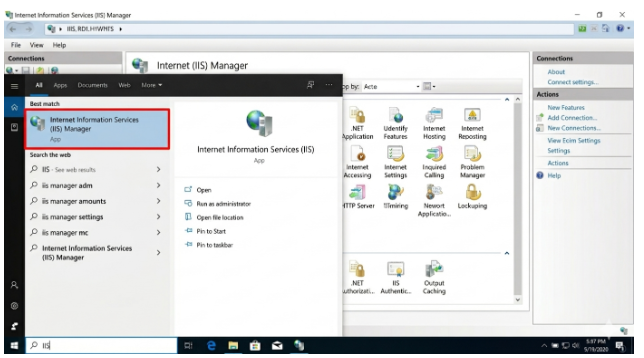
ℹ️ Can't find IIS Manager? IIS may not be installed on your server. Go to Control Panel → Programs → Turn Windows features on or off and enable Internet Information Services.
Step 3 — Open Server Certificates
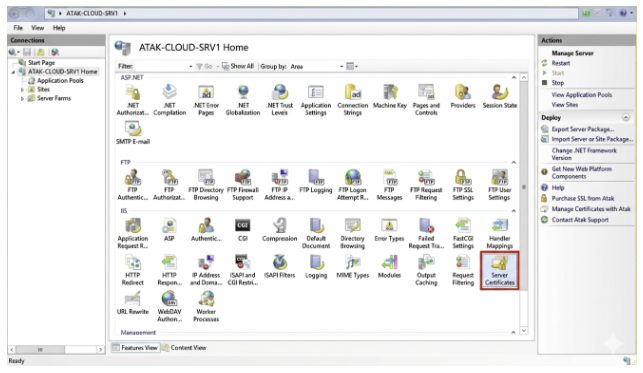
In the IIS Manager left-hand panel, click your server name. In the center pane, scroll to find the "Server Certificates" icon and double-click it to open the certificate management screen.
Step 4 — Launch the Complete Certificate Request Wizard
In the Actions panel on the right side of the screen, click "Complete Certificate Request…" to open the installation wizard.
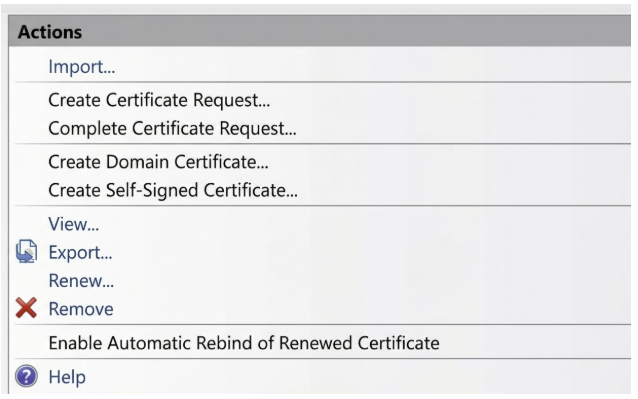
⚠️ Generated your CSR on a different server? You can't import the .crt file directly — you'll need to export a .pfx file (including the private key) from the original server and use the 'Import' option in IIS instead.
Step 5 — Upload the Certificate File and Set a Friendly Name
The "Specify Certificate Authority Response" window will open. Fill in the three fields as follows:
| Field | What to Enter |
| File name (.cer) | Click the "…" button and browse to your .crt file |
| Friendly name | A short label you'll recognize — e.g. yourdomain.com-2025 |
| Certificate store | Select "Personal" from the dropdown |
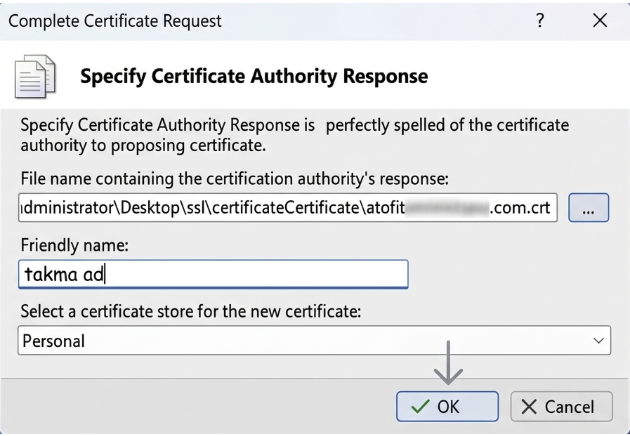
Click "OK" to complete the upload. The certificate is now installed on the server — the next step is to bind it to your website.
Step 6 — Add an HTTPS Binding on Port 443
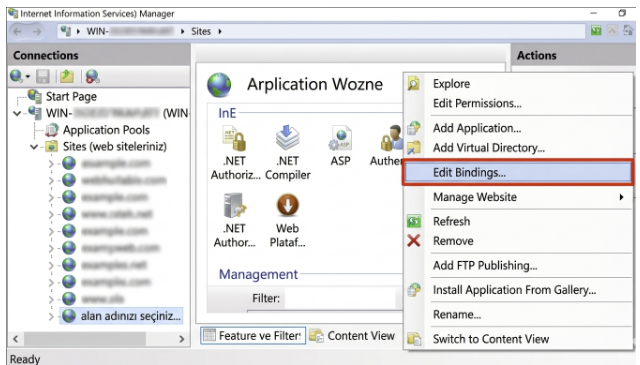
Installing the certificate isn't enough on its own — you need to tell IIS to use it. In the left-hand panel, right-click the website you want to secure and select "Edit Bindings…". In the Site Bindings window, click "Add" and complete the fields below.
| Field | Value / Notes |
| Type | https |
| IP Address | All Unassigned — or select your server's dedicated IP if applicable |
| Port | 443 |
| Hostname | Must exactly match your certificate — e.g. www.yourdomain.com |
| SNI | Check "Require Server Name Indication" if this IP is shared with other sites |
| SSL Certificate | Select the Friendly Name you entered in Step 5 |
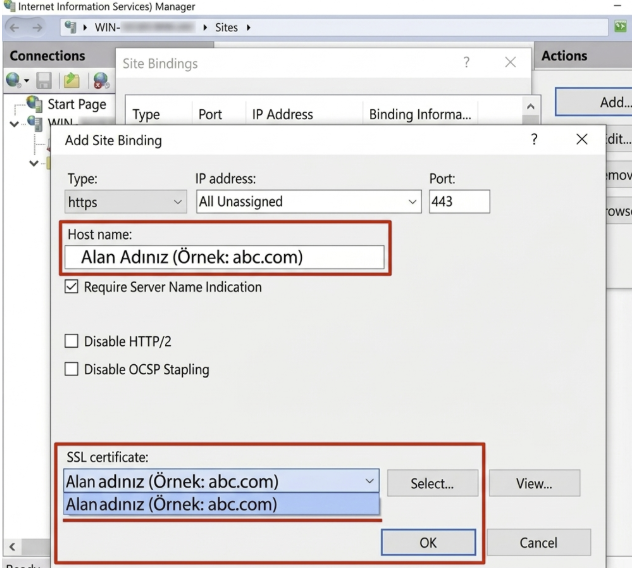
ℹ️ What is SNI? Server Name Indication lets IIS serve a different SSL certificate for each domain sharing the same IP address. If you're on a shared server or hosting multiple sites on one IP, you must enable SNI — otherwise IIS won't know which certificate to present.
Click "OK" to save the binding. Your site is now accessible over HTTPS.
Step 7 — Redirect HTTP to HTTPS
Adding the HTTPS binding doesn't automatically redirect visitors who type http://. You need an explicit redirect so every visitor — and every search engine bot — lands on the secure version of your site.
Using the IIS URL Rewrite Module
Download and install the URL Rewrite module from Microsoft (free).
In IIS Manager, select your site and double-click URL Rewrite.
Click Add Rule → Blank Rule. Set the condition to check HTTPS is off, and the action to a 301 permanent redirect to https://{HTTP_HOST}/{R:0}.
⚠️ HTTP → HTTPS redirects are non-negotiable for SEO. Google has used HTTPS as a ranking signal since 2014, and Chrome actively marks HTTP pages as 'Not Secure' — which drives up bounce rates and signals poor quality to search engines.
Step 8 — Verify Your SSL Installation
Before you're done, confirm everything is working correctly:
Open a browser and navigate to https://www.yourdomain.com — you should see a padlock in the address bar.
Run a free check at atakdomain.com/en/ssl-checker to confirm your certificate is valid and trusted.
Test your SSL configuration at SSL Labs (ssllabs.com/ssltest) — aim for an A or A+ rating.
✅ No padlock? The most common cause is a missing intermediate certificate (incomplete chain). Your browser trusts the chain, not just your certificate. Contact Atak Domain support — we'll sort it out for free.
Common IIS SSL Errors and How to Fix Them
| Error | Fix |
| Certificate doesn't appear in the list | Try the 'Web Hosting' store instead of 'Personal' — some IIS versions require it. |
| "Cannot find the certificate request" | CSR and certificate must be on the same server. If you moved servers, export a .pfx from the original machine and use Import instead. |
| Browser shows 'Not Secure' warning | Your intermediate (chain) certificate is missing. Download the CA Bundle from your certificate provider and install it. |
| Port 443 is not reachable | Open port 443 in both Windows Firewall and any network-level firewall or load balancer in front of your server. |
| SSL checker reports incomplete chain | Manually install the intermediate certificate into the IIS certificate store using MMC (certlm.msc). |
Frequently Asked Questions
Does IIS SSL installation differ between IIS 7, 8, and 10?
The core steps are identical across all versions. IIS 8 introduced full SNI support, which allows multiple SSL certificates on a single IP address. IIS 7.5 and earlier don't support SNI — each domain needs its own dedicated IP. IIS 10 (Windows Server 2019/2022) adds TLS 1.3 support and performs best with modern certificate configurations.
Can I use a Wildcard SSL certificate to secure multiple subdomains on IIS?
Yes. A Wildcard SSL certificate (e.g. *.yourdomain.com) covers all first-level subdomains — mail.yourdomain.com, shop.yourdomain.com, api.yourdomain.com, and so on. In IIS, create a separate HTTPS binding for each subdomain, enter the subdomain in the Hostname field, and enable SNI. One certificate handles them all.
How do I renew an SSL certificate on IIS?
You don't need to generate a new CSR (you can reuse the existing private key). Request a renewal from your certificate provider, download the new .crt file, and repeat Steps 4–6. In Step 6, edit the existing HTTPS binding and simply swap in the new certificate — no downtime required.
Will installing SSL improve my Google rankings?
Yes — directly and indirectly. Google has confirmed HTTPS as a ranking signal since 2014, giving secure sites a measurable edge over HTTP equivalents. Beyond the direct signal, Chrome flags HTTP pages as 'Not Secure', which increases bounce rates and reduces dwell time — both indirect negative signals for rankings. Installing SSL is one of the most straightforward technical SEO wins available.
Can I get free installation support from Atak Domain?
Absolutely. Every SSL certificate purchased through Atak Domain includes free installation support. If you get stuck at any point in this guide, reach out via live chat, support ticket, or phone — our team is available 24/7.
Secure Your Website Today
Atak Domain offers DV, OV, EV, and Wildcard SSL certificates from $0.83/month. Every certificate includes free installation support, 24/7 technical assistance, and a 30-day money-back guarantee.
Browse SSL Certificates
Browse SSL Certificates — Get Activated in Minutes →
Random Articles
A Complete Guide on xmlrpc.php in WordPress (What It Is, Security Risks, How to Disable It)
13.01.2022
The Ultimate Guide to Fixing and Troubleshooting the Most Common WordPress Errors (70+ Issues)
24.01.2022
How to install Cloudflare APO for WordPress with performance improvement
29.11.2021
10 Best WordPress A/B Testing Tools to Optimize Conversion Rate
30.06.2022
What is the second level domain?
20.04.2021